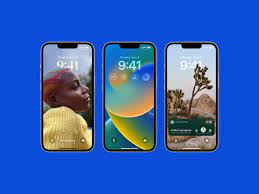
Looking for original Apple wallpapers for your iPhone? The good news is that you probably already have most of them. Apple builds its official wallpaper collection right into iOS, so the cleanest, sharpest versions are waiting inside your Settings app, not on a random download site. This guide walks you through the styles Apple has used since the iOS 15 era, where to find them on your phone, how to give your lock screen and home screen different looks, and how to keep every wallpaper crisp on your exact model.
We will also share a resolution table for every recent iPhone, so you can pick or create images at the right size if you want something Apple-inspired of your own.
What Makes Original Apple Wallpapers Special?
Apple designs its default wallpapers with the same care it puts into the hardware. Each one is made for the iPhone display it ships with, so colours look rich on OLED panels, dark areas look truly black, and gradients stay smooth without banding. Many of them also come in light and dark versions that switch automatically when your phone changes appearance mode at sunset or sunrise.
Another detail people miss: the built-in files are full resolution. When you grab a wallpaper from a screenshot or a re-uploaded image online, it is often compressed, cropped, or resized for a different phone. The version inside iOS is the real thing, and it is the only fully legitimate way to use these designs, because the artwork belongs to Apple.
A Short Tour of Apple’s Wallpaper Styles Over the Years
Apple’s look has shifted with almost every major iOS release. Here is a quick description of the main styles you may recognise:
- iOS 15 era: soft, flowing abstract shapes that look a bit like folded silk or swirls of paint. They came in several colour families, each with a bright version for light mode and a deeper, moodier version for dark mode.
- iOS 16: the big change was not a single image but the new lock screen editor. Apple added whole wallpaper categories such as Astronomy, Weather, Emoji, Color, and Collections, plus the option to show widgets and change the clock font.
- iOS 17: new styles such as Kaleidoscope arrived, and Live Photos could be used on the lock screen with a smooth slow-motion effect when you wake the phone.
- iOS 18: wallpapers worked together with tinted and dark home screen icons, so Apple’s colourful gradients could match the overall look of your apps. You can browse the full set in our iOS 18 wallpapers guide.
- Newer releases: each new version of iOS and each new iPhone adds fresh designs, often in colours that match that year’s phone finishes.
If you own an older iPhone, keep in mind that some original Apple wallpapers only appear on certain models or certain iOS versions. Updating iOS is the easiest way to unlock newer designs.
How to Find Original Apple Wallpapers on Your iPhone
All original Apple wallpapers on your phone are stored in one wallpaper gallery. To open it:
- Open the Settings app.
- Tap Wallpaper.
- Tap Add New Wallpaper.
- Scroll through the gallery. You will see suggested sets at the top and categories such as Collections, Astronomy, Weather, Emoji, and Color further down.
- Tap any design to preview it full screen, then swipe left or right to see colour variations.
- Tap Add, then choose Set as Wallpaper Pair or Customize Home Screen.
You can also reach the same gallery faster: unlock your iPhone, stay on the lock screen, then touch and hold it until the editor opens. Tap the plus button to add a new wallpaper.
Set Different Lock Screen and Home Screen Wallpapers
Many people like a bold lock screen and a calmer home screen so app icons stay easy to read. iOS makes this simple:
- Go to Settings > Wallpaper. You will see your current pair side by side.
- Tap Customize under the home screen preview.
- Choose one of the options: keep the same image, pick a solid Color, use a Gradient based on your lock screen, or tap Photos to choose a different image.
- Turn on Legibility Blur if you want the background softened behind your icons.
- Tap Done to save.
Tip: a gradient home screen built from one of the original Apple wallpapers often looks the most “Apple”. It keeps the colour theme but removes visual clutter behind icons.
Depth Effect Tips for a Cleaner Lock Screen
The depth effect lets the subject of a photo sit slightly in front of the clock, like a magazine cover. It works best with your own photos rather than original Apple wallpapers, but it is worth knowing how to get it right:
- Pick a clear subject: people, pets, buildings, and mountains with a simple sky behind them work best.
- Leave space at the top: the subject should overlap the clock only a little. If it covers too much, iOS may turn the effect off.
- Watch your widgets: widgets and some clock positions can block the effect. Try moving or removing widgets if the option is greyed out.
- Turn it on manually: in the lock screen editor, tap the three-dot menu and make sure Depth Effect is checked.
- Pinch to reposition: zoom and drag the photo until the subject lines up nicely with the time.
iPhone Screen Resolutions by Model
If you want to create your own Apple-style wallpaper, or choose an image from a legal source, matching your screen resolution keeps it sharp. Use this table as a quick reference (sizes are in pixels, portrait orientation):
| iPhone Model | Screen Size | Resolution (pixels) |
|---|---|---|
| iPhone SE (2nd and 3rd gen) | 4.7 inch | 750 x 1334 |
| iPhone 11 | 6.1 inch | 828 x 1792 |
| iPhone 11 Pro | 5.8 inch | 1125 x 2436 |
| iPhone 11 Pro Max | 6.5 inch | 1242 x 2688 |
| iPhone 12 mini, 13 mini | 5.4 inch | 1080 x 2340 |
| iPhone 12, 12 Pro, 13, 13 Pro, 14, 16e | 6.1 inch | 1170 x 2532 |
| iPhone 12 Pro Max, 13 Pro Max, 14 Plus | 6.7 inch | 1284 x 2778 |
| iPhone 14 Pro, 15, 15 Pro, 16 | 6.1 inch | 1179 x 2556 |
| iPhone 14 Pro Max, 15 Plus, 15 Pro Max, 16 Plus | 6.7 inch | 1290 x 2796 |
| iPhone 16 Pro, 17, 17 Pro | 6.3 inch | 1206 x 2622 |
| iPhone 16 Pro Max, 17 Pro Max | 6.9 inch | 1320 x 2868 |
Not sure which model you have? Go to Settings > General > About and look at Model Name.
How to Keep Wallpapers Looking Sharp
Even a great image can look soft if it is set up the wrong way. These habits help:
- Use the built-in gallery first. Original Apple wallpapers are already the right size for your screen.
- Go slightly larger than your screen. When making your own, add some extra pixels on each side so iOS has room to zoom and crop without stretching.
- Avoid screenshots of wallpapers. A screenshot includes compression and sometimes status bar marks.
- Save as PNG or high-quality HEIC/JPEG. Heavy compression creates blocky gradients.
- Do not zoom in too far. Pinching in the editor enlarges the image and reduces detail.
- Check Reduce Motion. If wallpapers look flat or do not move as expected, look at Settings > Accessibility > Motion.
For more high-detail options that suit modern displays, see our picks of 4K wallpapers for iPhone.
Legal Ways to Get More Apple-Style Wallpapers
Because Apple owns the artwork behind its original Apple wallpapers, the safe approach is to use what iOS gives you and fill the gaps with your own creations or properly licensed images:
- Update iOS: new versions often bring new designs to the built-in gallery.
- Use the lock screen editor: the Color, Emoji, Weather, and Astronomy options let you create endless variations that feel official.
- Try Photo Shuffle: let iOS rotate your favourite photos automatically, by the hour, daily, on tap, or when you wake the phone.
- Make your own: a simple gradient in two of Apple’s signature colours, saved at your screen resolution, can look surprisingly close to a default design.
- Browse our collections: our iPhone wallpaper category and our aesthetic wallpaper ideas are good starting points.
For Apple’s own instructions on wallpaper settings, see the iPhone User Guide on Apple Support.
Frequently Asked Questions
Can I download original Apple wallpapers as files?
Apple does not offer its wallpapers as separate downloads. They come built into iOS on your iPhone, and the artwork belongs to Apple. The legal way to use them is through Settings > Wallpaper > Add New Wallpaper.
Why can’t I see a wallpaper my friend has?
Some designs are tied to a specific iPhone model or a newer iOS version. Check that your phone is updated in Settings > General > Software Update. If it is still missing, that design may be exclusive to newer hardware.
Do the original wallpapers change in dark mode?
Many of them do. When a wallpaper supports it, you will see an appearance option in the editor, and the image will switch between light and dark versions along with your system appearance.
How do I get my old wallpaper back?
Touch and hold the lock screen, then swipe left or right through your saved wallpapers. iOS keeps previous setups there until you delete them, so you can switch back in seconds.
Will a custom wallpaper drain my battery?
A static image has almost no effect on battery life. Animated styles such as Weather or Astronomy, or Live Photo wallpapers, may use a little more power, but the difference is small for most people.
Conclusion
The best source for original Apple wallpapers is your own iPhone. Open the gallery in Settings, try different lock and home screen pairs, use the depth effect with your own photos, and match the resolution table when you create something new. You get a sharp, official-looking setup without hunting for low-quality copies online.