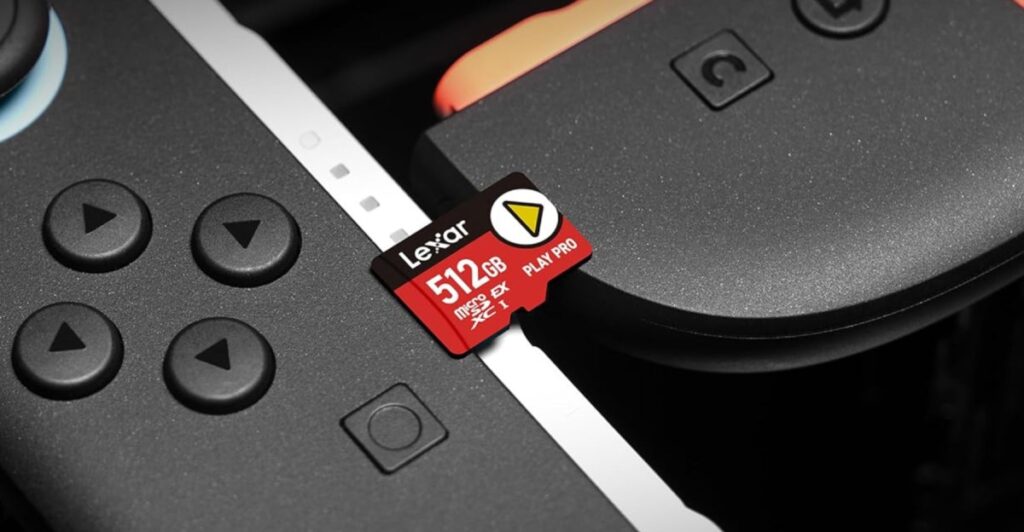
If you own a Nintendo Switch 2, the first storage upgrade you should think about is a microSD Express card for Switch 2. The console has more built-in storage than the original Switch, but modern games are big, and space disappears fast once you start downloading titles from the eShop. This buying guide explains why the Switch 2 needs microSD Express, how to recognise the right card, which capacity makes sense for you, and how to set the card up.
We do not list prices here because they change all the time. When you are ready to buy, check the current price at a trusted store or during a big sale event.
Why the Switch 2 Needs a microSD Express Card
The original Switch used normal microSD cards. The Switch 2 is different: to store and play Switch 2 games from a memory card, Nintendo requires microSD Express cards. A regular microSD, microSDHC or microSDXC card cannot be used to store downloaded games on the Switch 2, even if it is a fast, high-end card.
The reason is speed. microSD Express uses a faster connection (based on PCIe and NVMe technology, the same kind of tech used in many SSDs), so the card can load data much quicker than older cards. That helps big Switch 2 games load quickly when you play them from the card instead of internal storage. You can read Nintendo’s own storage advice on the official Nintendo site.
In short: if you want more space for Switch 2 games, buy a microSD Express card for Switch 2. An old card from your first Switch will not do the job.
How to Identify a microSD Express Card for Switch 2
microSD Express cards look almost the same as normal cards, so it is easy to grab the wrong one. Check these things before you buy:
- The “EX” logo: genuine microSD Express cards carry an “EX” mark on the card and the packaging. This is the quickest way to spot one.
- The word “Express” in the name: the product listing should clearly say microSD Express.
- Switch 2 compatibility: many listings mention Nintendo Switch 2 directly. Some cards are officially licensed by Nintendo.
- Not just “fast” or “A2” or “V30”: these speed labels appear on regular cards too. They do not mean the card is microSD Express.
If a listing is unclear, skip it. A cheap “Switch 2” card without the EX logo is likely a normal card that will not work for games.
Which Brands Make a microSD Express Card for Switch 2?
When the Switch 2 launched, only a few memory brands sold microSD Express cards, but the choice has slowly grown. Well-known names include:
- SanDisk – makes microSD Express cards, including versions designed and licensed for the Nintendo Switch 2. See the range on SanDisk’s website.
- Samsung – offers its own microSD Express cards. Check the current models on Samsung’s website.
- Lexar – another established memory brand that sells microSD Express cards aimed at gamers.
Stick with known brands and buy from the brand’s official store or a big retailer such as Amazon (look for items sold by Amazon or the official brand store). Fake memory cards are common, and they can report a bigger capacity than they really have, which can corrupt your data.
What Capacity of microSD Express Card for Switch 2?
microSD Express cards are commonly sold in 256GB and 512GB sizes, with 1TB and larger models available from some brands. Nintendo says the Switch 2 supports cards up to 2TB. Game sizes vary a lot: small indie games may need only a few gigabytes, while big Switch 2 titles can use tens of gigabytes each. Use this table as a rough guide only.
| Capacity | Roughly how many games | Best for |
|---|---|---|
| 256GB | A handful of large games, or many small indie games | Casual players who delete games they have finished |
| 512GB | A good-sized library of big games plus indies | Most players; the best balance of space and cost |
| 1TB | A large library with plenty of room to spare | People who buy mostly digital games |
| Larger (up to 2TB supported) | A very large digital collection | Collectors who never want to delete anything |
Remember that the console’s internal storage adds to this space, and that physical game cards also take up some storage for updates and save-related data. If you buy most of your games digitally, go bigger than you think you need.
How to Install and Format a microSD Express Card for Switch 2
Setting up a new microSD Express card for Switch 2 only takes a few minutes. Follow these steps:
- Turn the console off completely. Hold the power button and choose the power off option. Do not insert the card while the console is in sleep mode.
- Find the card slot. Locate the microSD card slot on the console (Nintendo’s support pages show the exact position).
- Insert the card. Slide it in with the label facing the correct way until it clicks into place. Do not force it.
- Turn the console on. The Switch 2 should detect the card.
- Format if asked. If the console asks to format the card, accept. Formatting erases everything on the card, so back up any files first.
- Check storage. Open the system settings and look in the data or storage management section to confirm the new space is available.
- Move or download games. New downloads can go to the card, and you can move some existing software between internal storage and the card from the storage settings.
Tip: if the console does not recognise the card, power off, remove it, check that it really is a microSD Express card with the EX logo, and try again.
When to Buy a microSD Express Card for Switch 2
Memory cards are one of the most frequently discounted gaming accessories. The best times to look are:
- Amazon Prime Day and Prime Big Deal Days – see our guide to Prime Day gaming deals for tips on spotting real discounts.
- Black Friday and Cyber Monday – most big stores cut prices on storage at the same time.
- Back-to-school and holiday sales – smaller discounts, but still worth checking.
As more brands make microSD Express cards, prices for larger sizes tend to become more reasonable over time. Use a price tracker and check the current price before you buy. If you need space right away, a smaller card now is fine; you can upgrade later.
Mistakes to Avoid When Buying a microSD Express Card for Switch 2
- Buying a fast regular microSD card instead of a microSD Express card.
- Buying from unknown sellers with very low prices, which often means fake cards.
- Removing the card while the console is on, which can damage data.
- Choosing a tiny card and having to delete games every week.
- Forgetting that formatting erases everything on the card.
Frequently Asked Questions
Can I use my old Switch microSD card in the Switch 2?
Not for storing Switch 2 games. The Switch 2 requires a microSD Express card for game storage. A normal microSD card from the original Switch will not work for downloads on the new console.
How do I know if a card is microSD Express?
Look for the “EX” logo on the card and packaging, and the word “Express” in the product name. Speed labels such as A2 or V30 alone do not mean it is microSD Express.
What is the biggest card the Switch 2 supports?
Nintendo says the Switch 2 supports microSD Express cards up to 2TB. Check which sizes are actually on sale, as availability changes.
Is a 256GB microSD Express card for Switch 2 enough?
It is enough for a few large games or many smaller ones. If you buy a lot of digital games, 512GB or 1TB will save you from deleting games often.
Do microSD Express cards make games load faster?
They are much faster than regular microSD cards, which is why Nintendo requires them. Loading times also depend on the game itself.
Conclusion
A microSD Express card for Switch 2 is the only way to add game storage to Nintendo’s new console. Look for the EX logo, stick with trusted brands such as SanDisk, Samsung or Lexar, pick a capacity that fits how many digital games you buy, and wait for a big sale such as Amazon’s Prime Day event if you can. Then insert, format and enjoy more room for your library.