Is your iPhone battery draining fast after updating to iOS 27? You are not alone, and the fix is often simple. Apple says it is normal for battery life to dip for a few days after a big update while your iPhone indexes data and downloads new assets, and iOS 27 does more of this than usual for Siri AI. If the drain continues after that, the steps below will help you find the cause and get your battery lasting all day again, using only Apple’s built-in settings.
📱 Does your iPhone support iOS 27? Check in one tap with our free iOS 27 Compatibility Checker.
First: Was It a Recent Update?
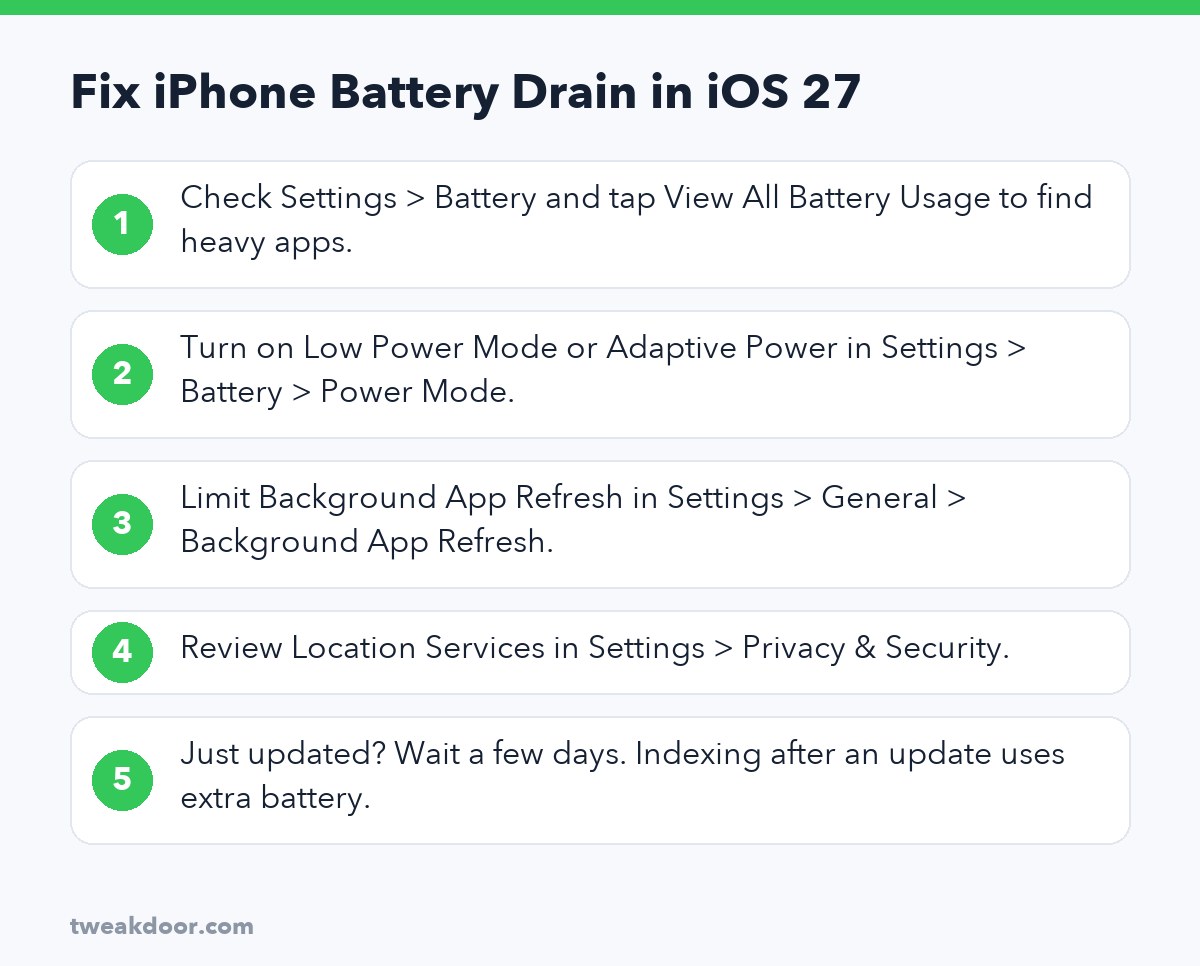
Apple says that right after an update, especially a major one, you may see a temporary impact on battery life and heat while your iPhone finishes background tasks like indexing files for search, downloading assets and updating apps. Apple’s advice is to wait a few days and check again. You may even see an “Ongoing iOS Update” insight on the Battery screen. If you just installed iOS 27.2.1, give it two or three days before changing lots of settings.
Quick Fixes for iPhone Battery Drain
1. Find the apps using the most battery
Go to Settings > Battery. You will see when your iPhone was last charged, a Daily Usage chart, and insights with suggestions. Tap View All Battery Usage to see which apps used the most power recently. Apple’s labels help explain why: “Background Activity” means the app is working when you are not using it, and “Notifications” means it keeps waking your screen.
2. Use Low Power Mode or Adaptive Power
Open Settings > Battery > Power Mode.
- Low Power Mode reduces things like Mail fetch, “Hey Siri,” Background App Refresh and some visual effects. It turns off by itself once you charge above 80%.
- Adaptive Power uses on-device intelligence to predict when you need extra battery life and makes small adjustments, like slightly lower brightness and limited background activity. It can also turn on Low Power Mode at 20%. Apple turns it on by default on the iPhone 17 and 18 lineups, iPhone Air and iPhone Duo, and it is available but off by default on the iPhone 16 lineup and iPhone 15 Pro models.
3. Limit Background App Refresh
Go to Settings > General > Background App Refresh. Turn it off for apps that do not need to update in the background, or set it to Wi-Fi only.
4. Check Location Services
Open Settings > Privacy & Security > Location Services. Set apps you rarely use to “Never” or “While Using the App” instead of “Always.”
5. Lower brightness and use Auto-Brightness
The screen is one of the biggest battery users. Turn on Auto-Brightness in Settings > Accessibility > Display & Text Size, and lower brightness with the Control Center slider when you can.
6. Tweak the Always-On display
Go to Settings > Display & Brightness > Always On Display. Turning off Show Wallpaper or Show Notifications helps a little, and turning Always-On off saves more.
7. Stop noisy notifications
If an app keeps lighting up your screen, turn off its notifications in Settings > Notifications.
8. Use Wi-Fi and 5G Auto
Wi-Fi uses less power than cellular. In areas with weak signal, your iPhone works harder, so use Wi-Fi or Airplane Mode when you can. You can also set Settings > Cellular > Cellular Data Options > Voice & Data > 5G Auto.
Check Your Battery Health
On iPhone 15 and later, go to Settings > Battery > Battery Health. On iPhone 14 and earlier, it is Settings > Battery > Battery Health & Charging. Maximum Capacity shows how much your battery holds compared with when it was new. Apple says iPhone 15 models are designed to keep 80% after 1,000 full charge cycles, and iPhone 14 and earlier after 500.
To slow battery aging, iPhone 15 and later can stop charging at a limit you choose. Go to Settings > Battery > Charging and pick from 80% to 100%.
When to Replace Your Battery
Apple suggests considering a battery replacement if you see Service next to Battery Health, or a message that your battery’s health is significantly degraded. If you have AppleCare+, Apple replaces the battery at no extra cost when it drops below 80% capacity. Without it, prices depend on your model, so check Apple’s battery service page for your iPhone. MacRumors reported $129 for the iPhone 18 Pro models.
What’s Better in iOS 27
MacRumors reports iOS 27 improves Bluetooth power management, so AirPods, Apple Watch and CarPlay use less power, and makes Safari more efficient. Once your iPhone finishes its post-update work, many people find battery life is as good or better than before. Running low on space too? See how to free up iPhone storage.
iPhone Battery Draining Fast: Frequently Asked Questions
Why is my iPhone battery draining so fast after iOS 27?
Your iPhone is likely still indexing data and downloading assets after the update. Apple says this is normal and temporary, so wait a few days.
Does Low Power Mode hurt my iPhone?
No. It just reduces some background activity and effects to save power, and it turns off when you charge above 80%.
What is Adaptive Power?
It is an iOS feature that predicts when you need more battery and makes small changes to save power. Find it in Settings > Battery > Power Mode.
Should I close apps to save battery?
Apple’s battery tips focus on settings like Background App Refresh, location and brightness rather than closing apps.
How do I know if I need a new battery?
Check Settings > Battery > Battery Health. If it shows Service or a degraded message, consider a replacement.