Want to save a game clip, show someone how to use an app, or keep a video call moment? Here is how to screen record on iPhone in iOS 27, with or without sound. It is built in, free, and takes two taps once it is set up. We cover where to find the button, how to turn on the microphone, where your recordings are saved, how to trim them, and what to do when screen recording is grayed out or records no sound.
Step 1: Add Screen Recording to Control Center
Swipe down from the top-right corner to open Control Center. If you already see a round Record button, skip to Step 2. If not:
- In Control Center, tap the + button at the top left to start editing.
- Tap Add a Control at the bottom of the screen.
- Find and tap Screen Recording.
- Drag it where you want it, then tap an empty area to finish.
Step 2: Start and Stop a Screen Recording
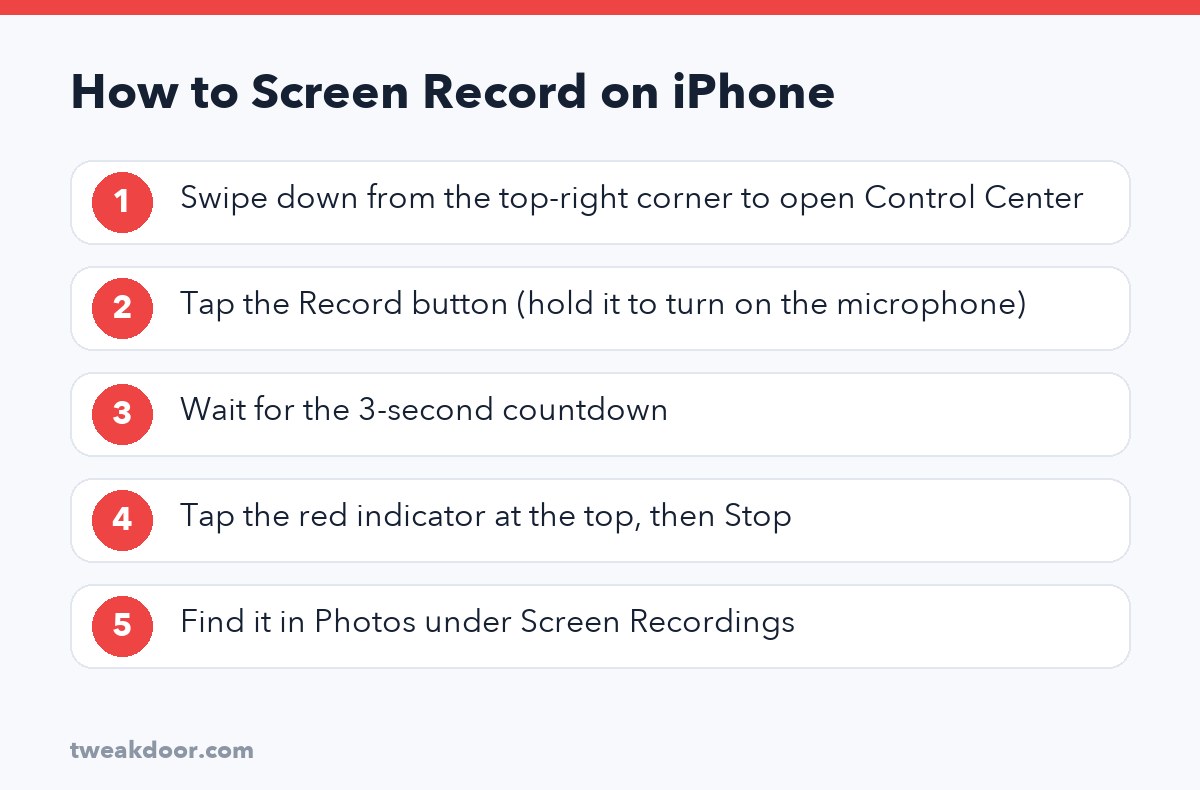
- Open Control Center and tap the gray Record button.
- Wait for the 3-second countdown, then close Control Center. Everything on screen is now being recorded.
- To stop: on iPhones with the Dynamic Island, tap the red circle at the top and then Stop. On other models, tap the red timer at the top left and then Stop. You can also open Control Center and tap the red Record button.
How to Screen Record With Sound (Microphone)
By default, the recording captures what your iPhone plays, not your voice. To talk over the recording:
- Open Control Center and touch and hold the Record button.
- Tap Microphone to turn it on.
- Tap Start Recording.
The setting stays on for next time, so turn it off the same way when you do not want your voice in the clip.
Where Are Screen Recordings Saved?
Every recording saves automatically to the Photos app. To see them all in one place, go to Photos > Collections > Media Types > Screen Recordings. Recordings take up a lot of space, so check out our iPhone storage guide if you record often.
How to Trim a Screen Recording
- Open the recording in Photos and tap Edit.
- Drag either end of the frame viewer below the video to cut the start or end.
- Tap Done, then choose Save Video to keep only the trimmed version, or Save Video as New Clip to keep both.
Changed your mind? Open it again, tap Edit, then Revert. This does not work for a clip saved as a new clip.
Higher Quality Recordings
MacRumors reports that since iOS 26 you can choose HDR or SDR for screenshots and screen recordings in Settings > General > Screen Capture. HDR looks brighter on iPhone screens but makes larger files. Pick SDR (Most Compatible) if you plan to share the video to other phones or upload it to social media.
Screen Recording Not Working? Fixes
| Problem | Fix |
|---|---|
| Button is grayed out | Check Screen Time: Settings > Screen Time > Content & Privacy Restrictions, and make sure Screen Recording is set to Allow. Then restart. |
| “Not available” message | Stop AirPlay or Screen Mirroring first. Apple says you cannot record and mirror at the same time. |
| No sound in the recording | Turn on Microphone for your voice. Some apps do not allow their audio to be recorded. |
| Black screen when recording a video app | Protected streaming apps often block recording. Apple says some apps do not allow recording. |
| Recording stops or will not save | Free up space in Settings > General > iPhone Storage, and let a hot iPhone cool down. |
Recording drains your battery quickly. See our tips for when your iPhone battery is draining fast.
Shortcut Tip: Open Control Center Faster
Apple’s Back Tap lets you double or triple tap the back of your iPhone to run an action. It does not offer Screen Recording directly, but you can set it to open Control Center, then tap Record. Go to Settings > Accessibility > Touch > Back Tap, choose Double Tap or Triple Tap, and pick Control Center. Back Tap can also take a screenshot.
Bonus: Full-Page Screenshots and Recording on a Mac
- Screenshot: press the side button and volume up together. On iPhone SE, press the Home button and side button.
- Full-page screenshot: in Safari, take a screenshot, tap the thumbnail, then tap Full Page.
- Record iPhone on a Mac: connect your iPhone with a cable, open QuickTime Player, choose File > New Movie Recording, click the menu next to the record button, pick your iPhone as the camera, and click Record. This is handy for long tutorials because the file saves straight to your Mac.
Recording gameplay? Grab free rewards first from our Roblox codes library.
Screen Record on iPhone: Frequently Asked Questions
How do I screen record on iPhone with sound?
Touch and hold the Record button in Control Center, turn on Microphone, then tap Start Recording.
Where is the screen record button on iPhone?
In Control Center. If it is missing, tap the + button in Control Center, tap Add a Control, and add Screen Recording.
Why is my screen recording grayed out?
It is usually blocked in Screen Time restrictions, or screen mirroring is on. Allow it in Content & Privacy Restrictions and stop mirroring.
Is there a time limit for screen recording on iPhone?
Apple does not list a time limit, but long recordings need free storage and battery.
Can I screen record Netflix on iPhone?
Usually not. Protected streaming apps often record a black screen.