
Just unboxed a new iPhone, or getting one for Christmas? These iPhone 18 Pro tips cover the hidden features and settings most new owners miss, from the new variable aperture camera to charge limits and Action button tricks. Several of them only work on the iPhone 18 Pro and Pro Max, so try them first. Every tip includes the exact place to find it.
📱 Does your iPhone support iOS 27? Check in one tap with our free iOS 27 Compatibility Checker.
1. Use the Variable Aperture Camera
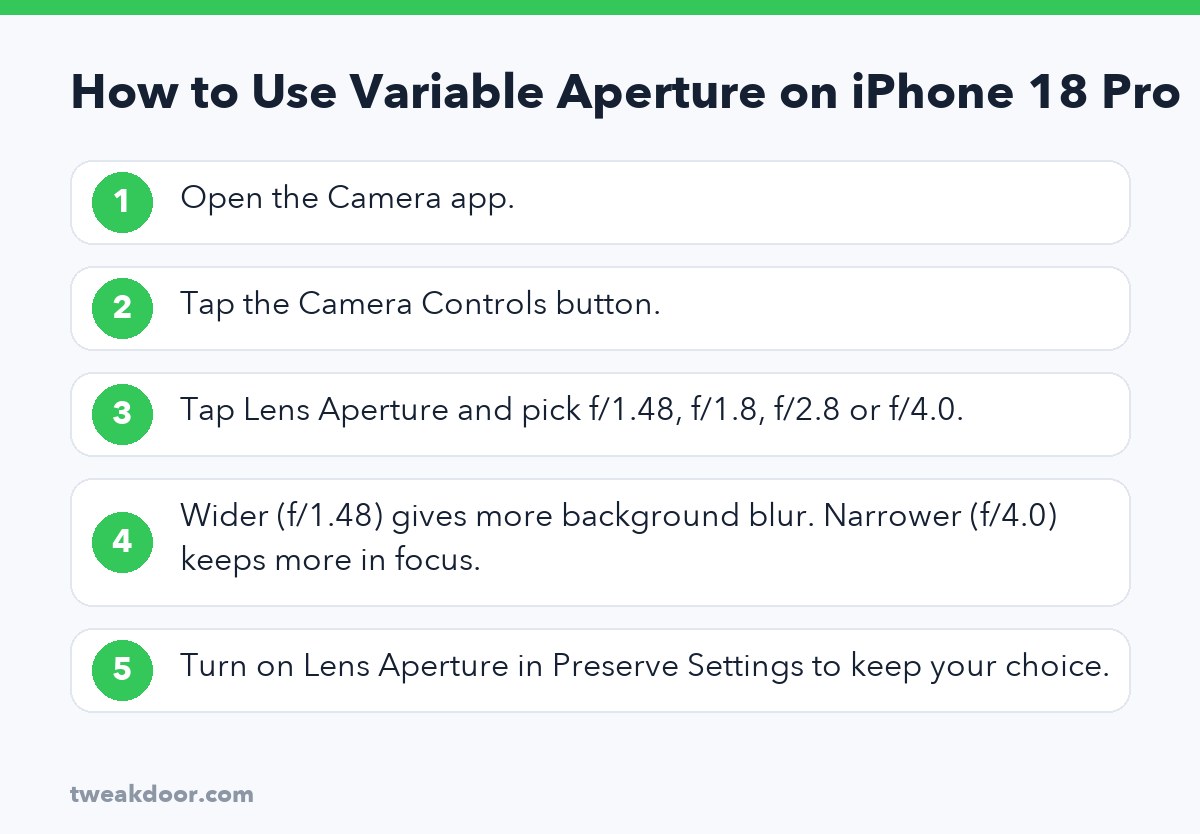
The iPhone 18 Pro’s main camera can change its aperture, something no earlier iPhone could do. Open Camera, tap the Camera Controls button, choose Lens Aperture, and pick f/1.48, f/1.8, f/2.8 or f/4.0. A wide aperture like f/1.48 lets in more light and blurs the background. A narrow one like f/4.0 keeps more of the scene sharp, which is great for group photos and landscapes. It works with the main lens at 1x and 2x in Photo, Video, Cinematic, Slo-mo and Time-Lapse. Reviewers found f/1.48 the softest setting, so use it mainly for low light and portraits.
2. Keep Your Aperture Setting
By default the camera resets your choices. Apple says to turn on Lens Aperture in the camera’s Preserve Settings options, which you will find in Settings > Camera, so your aperture stays where you left it.
3. Try Manual Shutter Speed and White Balance
The iPhone 18 Pro adds pro controls in the Camera app. Tap the Camera Controls button and choose Shutter Speed, White Balance or Histogram. You can add your favorites to the tools row above the viewfinder by pressing and holding the top controls and dragging them into place.
4. Take Verifiable Photos With Reference Image
Apple Reference Image creates photos with signed sensor data, so people can verify they are real. Set it up in Settings > Camera > Reference Image > Add Reference Mode, then swipe to Reference mode in the Camera app. A few things to know: each 48MP reference photo uses about 35 to 40MB until you develop it in Photos, developing needs an internet connection, Night mode does not work in this mode, and it is not available in the EU or China.
5. Add Texture and Grain to Photographic Styles
Photographic Styles now include texture options like Soft Skin, Glow and Film, plus a grain control. Open Settings > Camera > Photographic Styles, or tap Styles in the Camera app and choose Customize.
6. Customize Camera Control
Go to Settings > Camera > Camera Control to choose whether a single or double click opens the camera and to turn on Lock Focus and Exposure. Tap Customize to choose and reorder the controls that appear when you slide your finger on the button: Exposure, Depth, Zoom, Cameras, Styles and Tone.
7. Set a Charge Limit to Protect Your Battery
If you charge overnight every night, a charge limit can help your battery age more slowly. Open Settings > Battery > Charging and choose a limit from 80% to 100% in 5% steps.
8. Charge to 50% in About 15 Minutes
To get the fastest wired charging, use a USB-C power adapter that supports USB Power Delivery 3.1 with AVS and is rated 60W or more. Apple says that gets the iPhone 18 Pro to 50% in about 15 minutes. A regular 20W adapter works too, just more slowly.
9. Tweak the Always-On Display
Go to Settings > Display & Brightness > Always On Display. You can hide your wallpaper or notifications for a cleaner, more private look, or turn Always-On off completely to save a little battery.
10. Make the Action Button Useful
Open Settings > Action Button and swipe to choose an action: Silent, Focus, Camera, Visual Intelligence, Flashlight, Voice Memo, Recognize Music, Translate, Magnifier, Controls, Shortcut or Accessibility. If you pick Shortcut, Controls or Accessibility, make sure you choose a specific item, or the button will do nothing.
11. Track Three Live Activities at Once
The smaller Dynamic Island on the iPhone 18 Pro can show up to three Live Activities, such as a timer, a food delivery and a sports score. Press and hold one to expand it.
12. Get Siri AI
Siri AI works on the iPhone 18 Pro with iOS 27. Go to Settings > Siri to set it up. It needs English and is not available in the EU. Keep your iPhone updated: see what’s new in iOS 27.2.1 and what is coming in iOS 27.3.
Finish setting up your new iPhone with a fresh background from our free iPhone wallpapers. Still deciding whether to upgrade? Read our iPhone 18 Pro vs 17 Pro comparison.
iPhone 18 Pro Tips: Frequently Asked Questions
Which iPhone 18 Pro features are exclusive?
The variable aperture camera, the new pro camera controls and Apple Reference Image are exclusive to the iPhone 18 Pro and Pro Max.
How do I change the aperture on iPhone 18 Pro?
In the Camera app, tap the Camera Controls button, then Lens Aperture, and choose a setting from f/1.48 to f/4.0.
Does a charge limit hurt the iPhone 18 Pro?
No. It simply stops charging at your chosen level to reduce battery wear. You can change it any time.
What charger do I need for fast charging?
A USB-C adapter rated 60W or more that supports USB PD 3.1 with AVS gives the fastest charging.
Can I use Siri AI on iPhone 18 Pro?
Yes, in supported languages and regions. Set it up in Settings > Siri.