Got a new iPhone? Here is how to transfer data to a new iPhone the easy way. Apple’s Quick Start can move almost everything from your old iPhone in one go, and you can also restore from iCloud or a computer, or switch from Android with the Move to iOS app. This guide covers every method step by step, plus how to move your phone number, WhatsApp chats and Apple Watch, and what to do with your old phone afterward.
Before You Start
- Update your old iPhone to the latest iOS if you can.
- Back up your old iPhone to iCloud or a computer, just in case.
- Know your Apple Account password.
- Charge both phones and keep them on Wi-Fi.
Short on iCloud space? Apple offers free temporary iCloud storage for moving to a new iPhone. Go to Settings > General > Transfer or Reset iPhone > Prepare for New iPhone and tap Get Started. You get 21 days to restore, and you can extend it by 21 more days.
Method 1: Quick Start (Easiest)
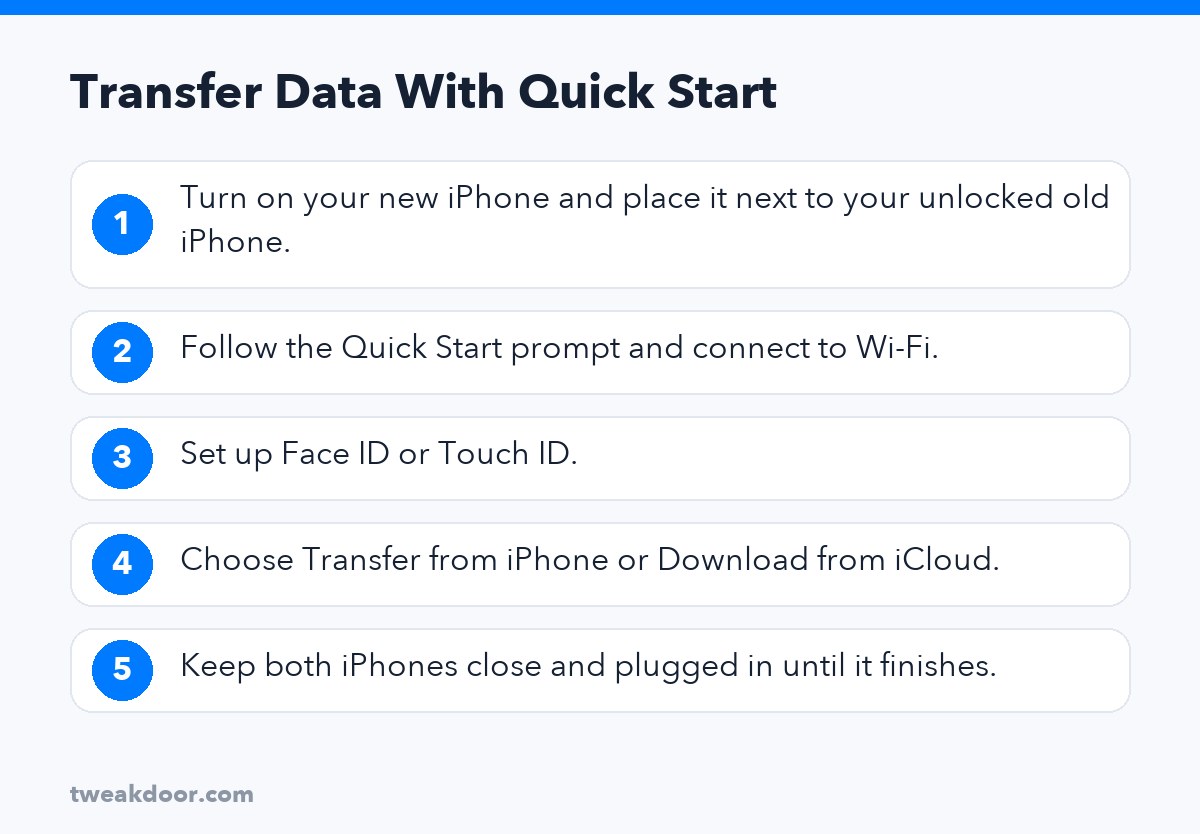
- Turn on your new iPhone and place it next to your unlocked old iPhone with Bluetooth on.
- When the Quick Start prompt appears on your old iPhone, follow the steps. If it disappears, restart both phones.
- Connect to Wi-Fi or cellular and activate your cellular plan if asked.
- Set up Face ID or Touch ID.
- Choose Transfer from iPhone or Download from iCloud.
Which option is better? With Download from iCloud, you can start using your new iPhone right away while apps and data download in the background. With a direct transfer, both phones are busy until it finishes. Apple says the time depends on your network and how much data you have, so plan for a while if you have lots of photos.
Faster with a cable: you can connect the two iPhones with a cable. Between two iPhone 15 or newer models, use a USB-C cable. From an iPhone 14 or older to an iPhone 15 or newer, use a USB-C to Lightning cable.
Method 2: Restore From an iCloud Backup
- On your old iPhone, go to Settings > [your name] > iCloud > iCloud Backup and tap Back Up Now.
- Turn on your new iPhone and follow setup until you reach Wi-Fi.
- On the Apps & Data screen, tap Restore from iCloud Backup.
- Sign in and choose your latest backup.
- Stay on Wi-Fi and power so your apps and photos finish downloading.
Method 3: Restore From a Mac or PC
On a Mac, connect your old iPhone, select it in the Finder sidebar, choose Encrypt local backup to include Health and Activity data, and click Back Up Now. On a Windows PC, use the Apple Devices app. Then connect your new iPhone and choose to restore from that backup.
Method 4: Switch From Android to iPhone
- On your new iPhone, choose Transfer Your Apps & Data > From Android.
- Install the free Move to iOS app on your Android phone from Google Play and open it.
- Enter the code shown on your iPhone and join the temporary Wi-Fi network it creates.
- Pick what to move and keep both phones plugged in until it finishes.
Apple says Move to iOS transfers contacts, messages, photos and videos, albums, files, bookmarks, mail accounts, WhatsApp chats, calendars, call history and more. Music, books and PDFs need to be moved manually, and Android apps must be downloaded again from the App Store.
Move Your Phone Number (eSIM)
If both iPhones are signed in to the same Apple Account and running iOS 18.4 or later, you can move your eSIM during setup with eSIM Quick Transfer. After setup, go to Settings > Cellular > Set Up Cellular and choose to transfer from a nearby iPhone. Carrier support varies, so contact your carrier if it does not work.
Move WhatsApp, Apple Watch and More
- WhatsApp: on your old phone, open WhatsApp, tap your profile picture, then Chats > Transfer Chats to iPhone and scan the code on the new phone. Use the same phone number on both.
- Apple Watch: back up your old iPhone first. During setup on the new iPhone, keep your watch unlocked and on your wrist and tap Continue when asked to use it.
- Authenticator apps: move your two-factor codes before you erase the old phone. Many authenticator apps have an export or transfer option. Keep the old phone until everything works.
What to Do With Your Old iPhone
- Make sure everything moved and your Apple Watch is paired with the new iPhone.
- Go to Settings > [your name] > Sign Out.
- Erase it: Settings > General > Transfer or Reset iPhone > Erase All Content and Settings, and erase the eSIM when asked.
- Trade it in, sell it, or give it to family.
Setting up an iPhone 18 Pro? Try our iPhone 18 Pro tips. For a foldable, see our iPhone Duo tips. And give it a fresh look with free iPhone wallpapers.
Transfer Data to a New iPhone: Frequently Asked Questions
How long does it take to transfer data to a new iPhone?
Apple says it depends on your network and how much data you have. Using a cable or choosing Download from iCloud can make it feel faster.
Can I transfer data after I set up my new iPhone?
Quick Start runs during setup. If you already finished, you can erase the new iPhone and start setup again to transfer.
Do I need iCloud to move to a new iPhone?
No. Quick Start can transfer directly from your old iPhone, and Apple offers free temporary iCloud storage if you prefer iCloud.
Will my WhatsApp chats transfer?
Yes, with WhatsApp’s own Transfer Chats to iPhone feature or an iCloud chat backup.
How do I move from Android to iPhone?
Use Apple’s Move to iOS app on your Android phone during iPhone setup.